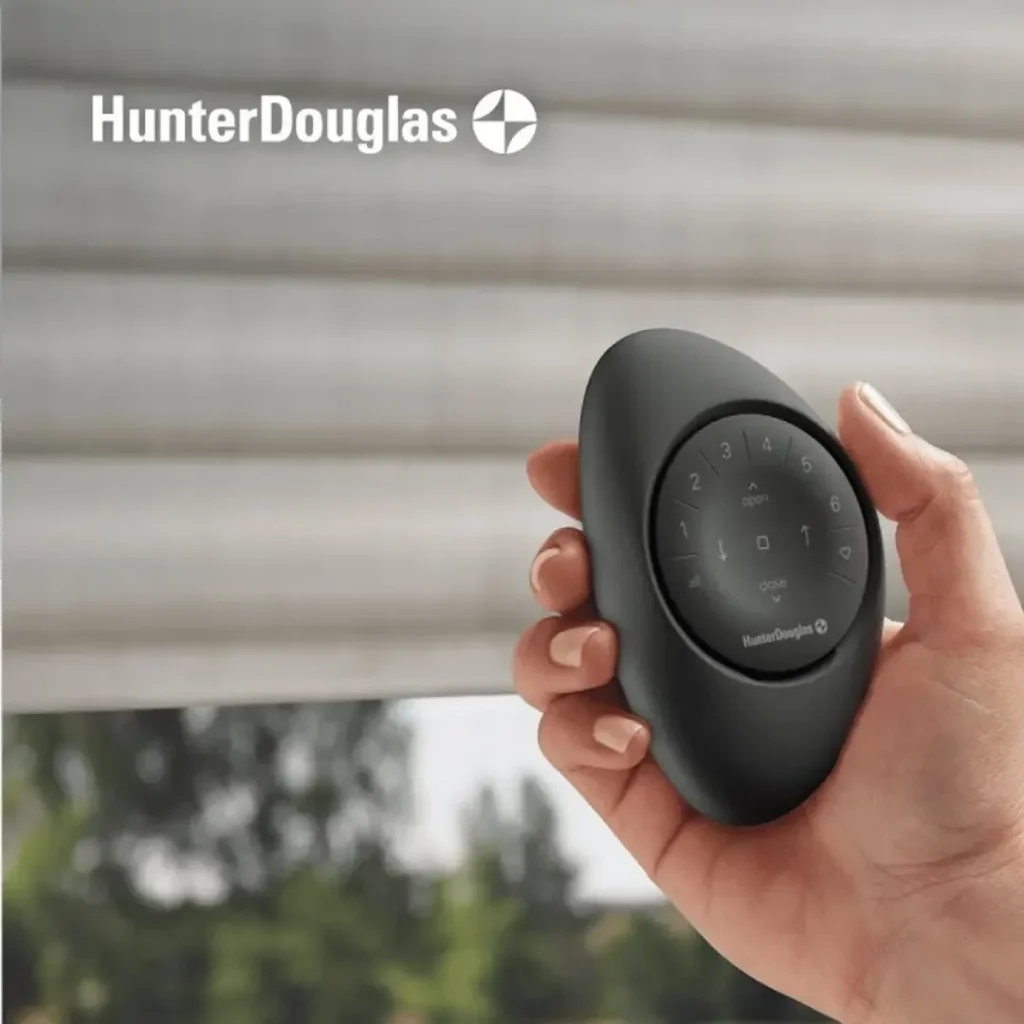
What is a Hunter Douglas Remote Control and How Does It Work?
A Hunter Douglas Remote Control is a dedicated wireless device designed to open, close, and position motorized Hunter Douglas window treatments — including shades, blinds, and draperies — with the press of a button.
Here’s a quick overview of what you need to know:
- Two main systems: Gen 2 (radio frequency) and Gen 3 (Bluetooth Low Energy)
- Two form factors: Handheld Pebble remote and wall-mounted Surface remote
- Control capacity: Up to 6 individual shades, or unlimited shades organized into groups
- Setup: Gen 3 remotes are configured entirely through the free PowerView App — no ladder required
- Power: Two CR2032 batteries per remote module; rechargeable battery options available for the shades themselves
- Smart home ready: Works with Alexa, Google Home, and other platforms via the PowerView Gateway
- Battery life: Approximately 1 year for rechargeable shade batteries; up to 3 years with C-size satellite wands
Whether you have a single motorized shade in a bedroom or a whole-home system, the PowerView remote puts precise, reliable control right in your hand — or on your wall.
I’m Jean Hauser, owner of The Color House and an interior design specialist with over two decades of experience helping Rhode Island homeowners select and install premium window treatments, including every generation of the Hunter Douglas Remote Control system. As a certified Hunter Douglas dealer, I’ve guided countless clients through choosing the right motorized control options for their homes, and I’ll walk you through everything you need to know.
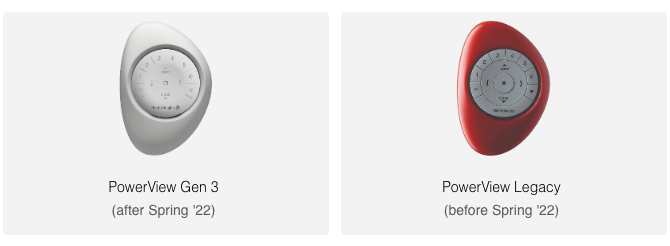
Evolution of the Hunter Douglas Remote Control: Gen 2 vs. Gen 3
At The Color House, we’ve seen the technology inside a Hunter Douglas Remote Control evolve from basic infrared signals to the sophisticated Bluetooth-driven systems we install today. Understanding which generation you have is the first step to mastering your home’s lighting.
The “Gen 2” system was the long-standing gold standard, utilizing Radio Frequency (RF) to communicate. It was because it didn’t require line-of-sight—you could close the bedroom shades from the kitchen. However, the latest “Gen 3” system has taken a massive leap forward. By switching to Bluetooth Low Energy (BLE), Gen 3 provides real-time, two-way communication. This means your shades can actually “talk back” to the system, reporting their exact position or battery level.
Gen 2 vs. Gen 3 Comparison Table
Feature PowerView Gen 2 PowerView Gen 3 Protocol Radio Frequency (RF) Bluetooth Low Energy (BLE) Setup Method Manual button pressing on shades PowerView App guided setup Hub Requirement Required for App/Smart Home No Hub needed for basic App use Communication One-way Two-way (Real-time feedback) Programming Requires physical access to shade “No-ladder” programming via App
One of the biggest perks we share with our Rhode Island clients is that Gen 3 eliminates the need for a “Hub” just to use the app. While you’ll still want a Gateway for voice control integration, the remote and app now work together more seamlessly than ever.
Key Features of the PowerView Gen 3 Hunter Douglas Remote Control
The Gen 3 Hunter Douglas Remote Control isn’t just a piece of tech; it’s a design statement. Hunter Douglas understands that if a remote is going to sit on your coffee table in Middletown or Newport, it needs to look good.
- Ergonomic Design: The remote module fits perfectly into the iconic “Pebble” housing, which is weighted to feel substantial and comfortable in your hand.
- Backlit Buttons: The buttons illuminate upon being touched or lifted, making it easy to adjust your hunter-douglas-treatments in a darkened media room.
- Group Control: You can select from six different groups. A “group” can be a single window, all windows on the left side of the room, or every shade in the house.
- Favorite Positions: The heart icon allows you to save a “Favorite” position for each shade—like having the vanes perfectly tilted to catch the morning sun without the glare.
- 10 On-Trend Colors: From Clear Frost to Black Matte, there is a color to match any Rhode Island interior design palette.
Comparing the Handheld Pebble and Wall-Mounted Surface
When you purchase a Hunter Douglas Remote Control, you choose between two mounting styles for the internal remote module.
The Pebble Remote is the handheld version. It’s perfect for those who want tactile control while lounging on the sofa. If you’re the type of person who loses the TV remote, however, you might prefer the Surface Remote. The Surface is a sleek, wall-mounted frame that keeps the remote in a fixed location, acting much like a modern light switch.
For many of our window-treatments projects, we recommend a mix: a Surface remote by the door for a “Master Off” command and a Pebble on the nightstand for easy bedside adjustments. You can find more details on these configurations in the official PowerView Manuals and Guides.
Transform Your Home with Hunter Douglas Smart Motorized Shades | The Color House
Mastering Setup, Operation, and Troubleshooting
Setting up a motorized system used to be a chore involving paperclips and ladders. With Gen 3, that’s a thing of the past. Everything is now handled through the PowerView App, which acts as the brain of the operation.
Basic Operation Commands
Operating your shades is intuitive once you know the button layout:
- Group Buttons (1-6): Press to select which shades you want to move.
- Open: Press to fully raise the shade.
- Close: Press to fully lower the shade.
- Stop: Press while the shade is moving to halt it at any point.
- Arrows: Used for precise adjustments of vanes, louvers, or the middle rail on Top-Down/Bottom-Up shades.
- Favorite: Press to send selected shades to your preset “sweet spot.”
Step-by-Step Guide to Programming Your Hunter Douglas Remote Control
If you’ve just brought home a new remote, follow these steps to get it running. For a deeper dive, you can always learn how to set up and program your remote through the Hunter Douglas support portal.
- Activate the Remote: Pull the plastic tab from the battery compartment.
- Download the App: Open the PowerView App on your mobile device.
- Create a Home: The app will guide you through creating a “Shade Network.”
- Pair the Remote: Navigate to More > Accessories > Remotes. The app will search for your remote via Bluetooth.
- Assign Groups: You’ll select a group number on the remote (1-6) and then choose which shades in the app should belong to that group.
- Set Favorites: Position your shade exactly where you want it using the app, then save that as the “Favorite” for that specific window.
One “pro tip” we give our clients at The Color House is to check the “Raise-to-Wake” feature. While it’s convenient that the remote lights up when you pick it up, deactivating this in the app can significantly extend your remote’s battery life.
Power Options and Battery Maintenance
A common question we get in our Cranston and Smithfield showrooms is, “Do I have to plug my blinds into the wall?” The answer is: usually no! Hunter Douglas offers several flexible power options that work in tandem with your Hunter Douglas Remote Control.
- Internal Rechargeable Batteries: Many modern shades have a battery hidden in the headrail. These typically last about a year on a single charge and can be recharged roughly 500 times.
- C-Size Satellite Wands: For large windows or high-traffic shades, these wands provide up to 3 years of life. They are often tucked behind the headrail or mounted nearby.
- 16-Shade DC Power Supply: If you are doing a full home remodel in Rhode Island, we can hard-wire your shades to a central power source, eliminating batteries entirely.
For the remote itself, it uses two CR2032 batteries. When these start to run low, the lights on your remote will turn red—that’s your signal to swap them out. You can learn more about these options in the ultimate guide to Hunter Douglas window treatments.
Smart Home Integration and Troubleshooting
The true magic happens when you connect your Hunter Douglas Remote Control system to a PowerView Gateway. This bridge allows your shades to talk to Alexa, Google Home, or Apple HomeKit. Imagine saying, “Alexa, good morning,” and watching every shade in your house rise simultaneously.
However, even the best tech can have a “hiccup.” Here is a quick troubleshooting checklist:
- Red Lights on Remote: Replace the CR2032 batteries.
- Shade Not Responding: Ensure the shade has power (try the manual button on the shade itself). If the manual button works but the remote doesn’t, the shade might have “lost” its group assignment in the app.
- Remote Not Lighting Up: Check that the batteries are inserted with the plus (+) side up.
- Signal Issues: In larger Rhode Island homes, thick stone walls or long distances can interfere with Bluetooth. Adding a PowerView Repeater or a Gateway Pro can extend the range to cover up to 30 shades.
Expert Advice for Your Motorized Window Treatments
At The Color House, we pride ourselves on being more than just a paint store. We are a women-owned business dedicated to providing expert advice that big-box stores simply can’t match. Whether you are in North Kingstown or Middletown, our team is here to ensure your window treatments are as functional as they are beautiful.
We always recommend buying genuine Hunter Douglas parts. While you might find a “deal” on a used Hunter Douglas Remote Control on auction sites, these are often older Gen 1 or Gen 2 models that won’t be compatible with a brand-new Gen 3 system. Plus, when you work with us, you get the peace of mind that comes with professional installation and local support.
If you’re ready to upgrade your home with the latest in motorized convenience, we invite you to request a consultation for window treatments with one of our specialists. We’ll help you navigate PowerView Automation and find the perfect solution for your unique space.